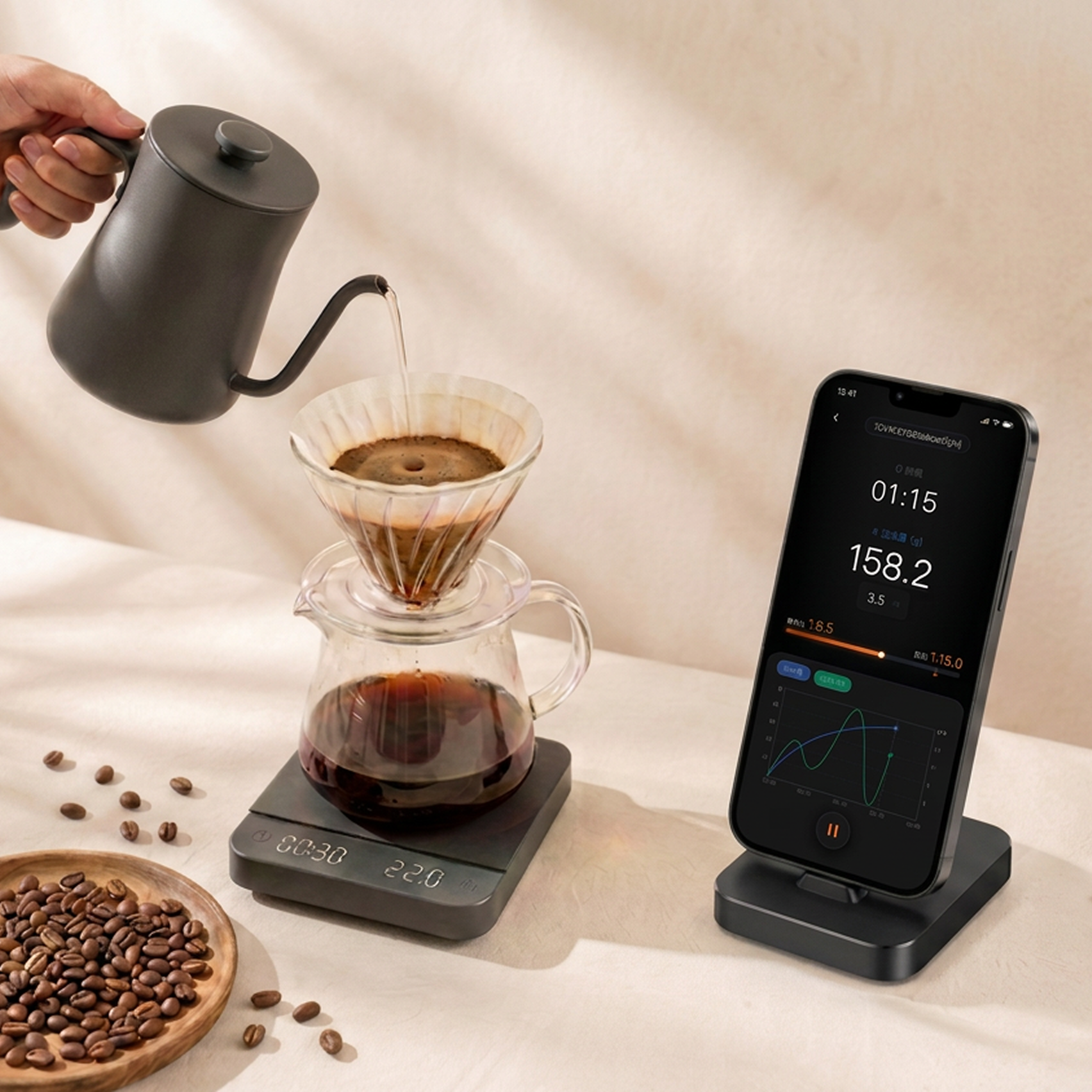
Smart coffee brewing setup with the companion app data interface

UI/UX Design | Design Intern | 2026.04—06

Smart Coffee Brewing App

Project overview

Optimising data presentation, interaction feedback, and the end-to-end experience across connected tools and the app for pour-over and espresso workflows.

My work

Led core in-brew and post-brew flow improvements, responsive phone and iPad design, component guidelines, and product-development delivery.

Project outcomes

Live data dashboardClearer brewing data
Multi-device designPhone and iPad support
55 improvementsAudit and recommendations
Scroll to explore

01 / PRODUCT POSITIONING

Product positioning

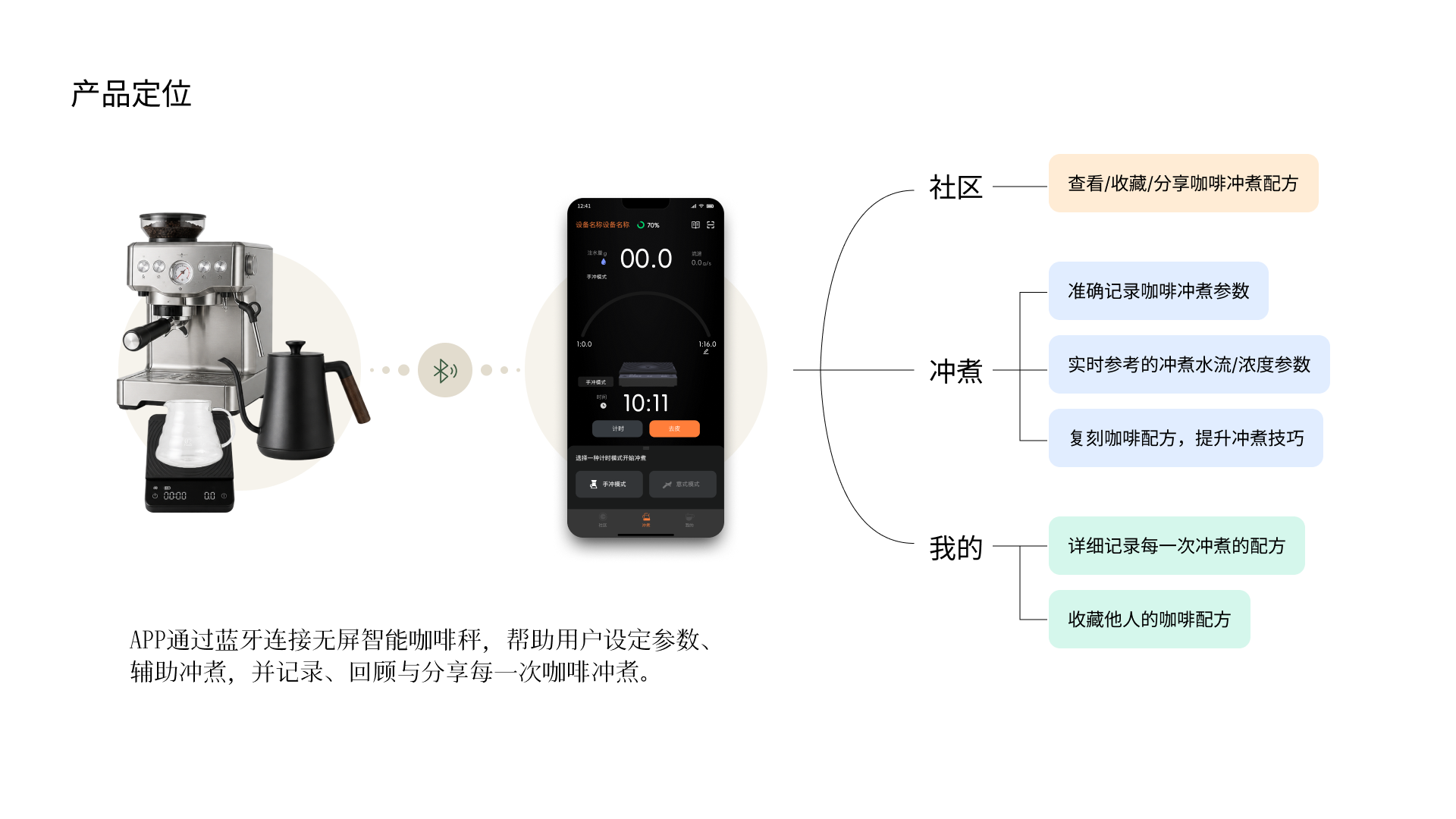
Coffee equipment and a smart scale connecting to the mobile app over Bluetooth

The app connects to a screenless smart coffee scale over Bluetooth, helping people set targets, brew with live guidance, and record, review, and share every brew.

APP

Community

  • View, save, and share coffee recipes

Brew

  • Record brewing parameters accurately
  • Reference flow rate and concentration in real time
  • Recreate recipes and improve technique

My brews

  • Keep a detailed record of every recipe
  • Save recipes created by others

02 / AUDIT & SYNTHESIS

From audit to priorities

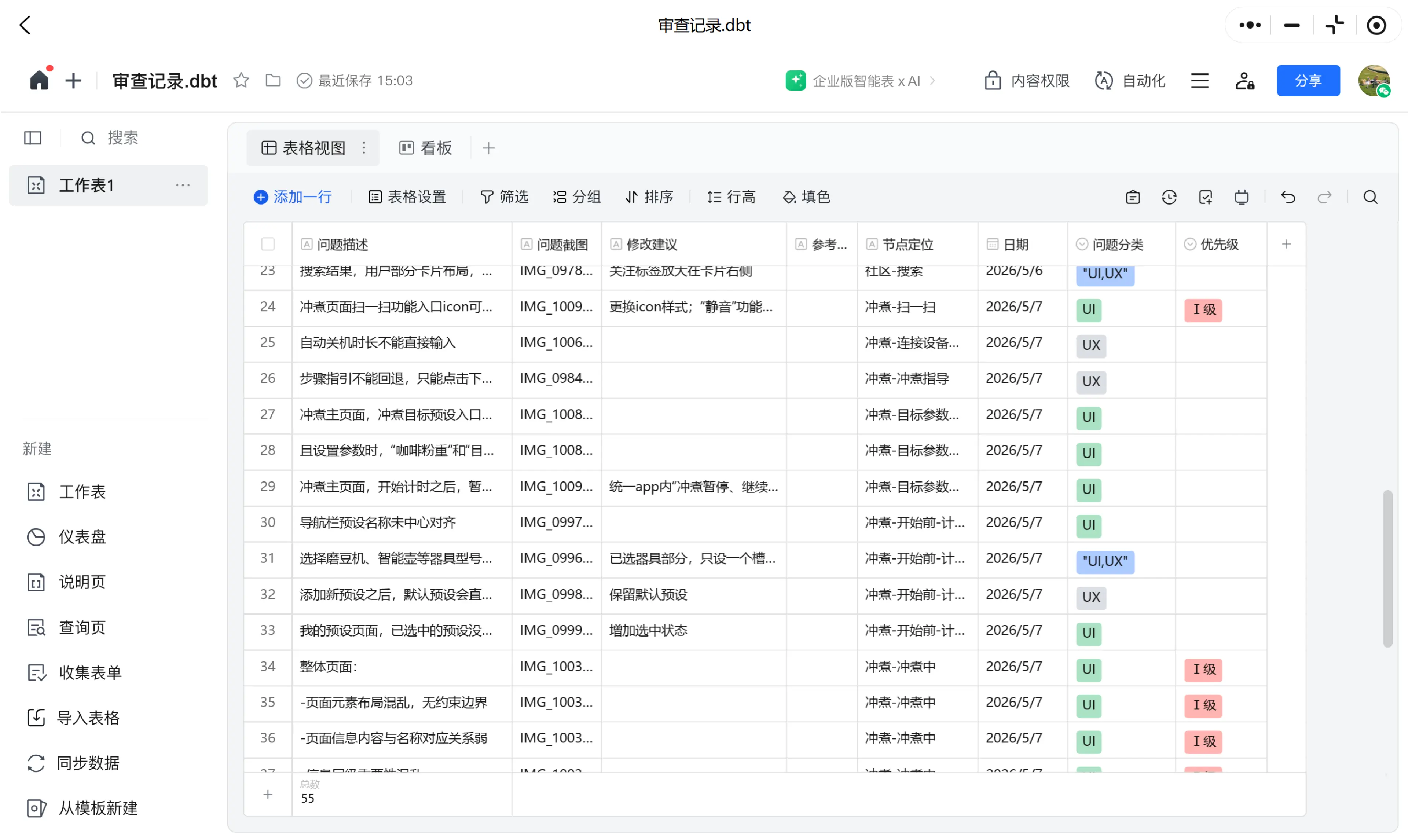
The audit produced 55 findings. From these, 17 directly concerned the brewing journey and 7 concerned recipe details and charts.

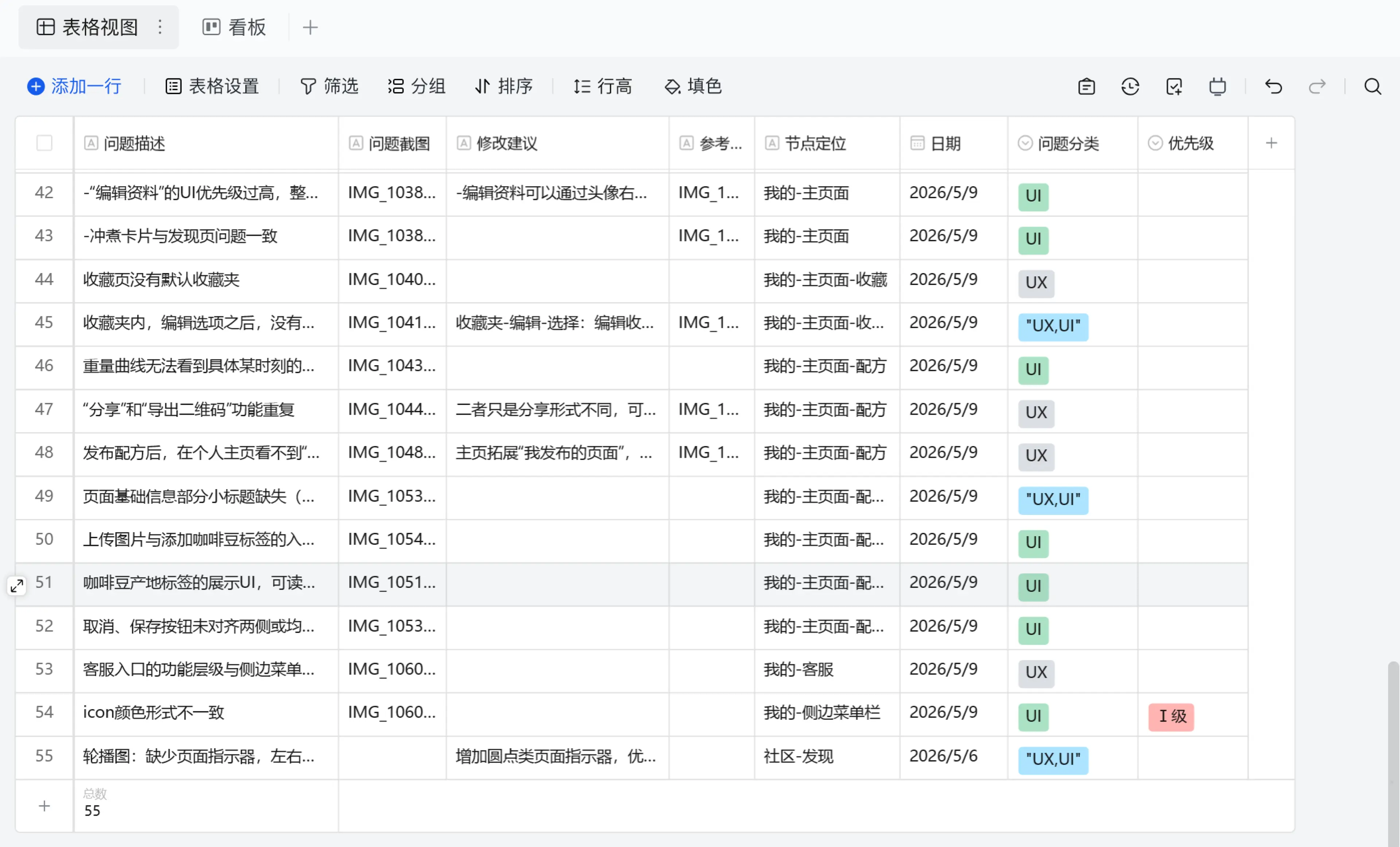
Table showing 55 experience audit findings
Filtered findings for the brewing journey
55

Priority lens

  1. 01User value first
  2. 02Impact-effort first
  3. 03Business strategy first
01

Core brewing journey

  • Critical data was scattered and lacked a clear visual structure
  • Some interface elements were difficult to recognize
  • Initial states and error prevention were missing
02

Visual consistency

  • The product lacked a unified visual language and component rules
03

Future feature planning

  • Explore a bean library connecting coffee beans, recipes, and brewing records

03 / CORE BREWING JOURNEY

Core brewing journey

One continuous journey board maps each critical interface to its corresponding UI and UX issues.

  1. 01Set parametersCoffee weight · Brew ratio · Target value
  2. 02Prepare to brewEnter brewing
  3. 03Monitor live dataBrewing in progress
  4. 04Finish and saveComplete brewing
  5. 05Record and sharePost-brew review
Original app interface during brewing preparationSMART BREW

UI issues

  • The information hierarchy is unclear

  • Missing layout boundaries create visual clutter

UX issues

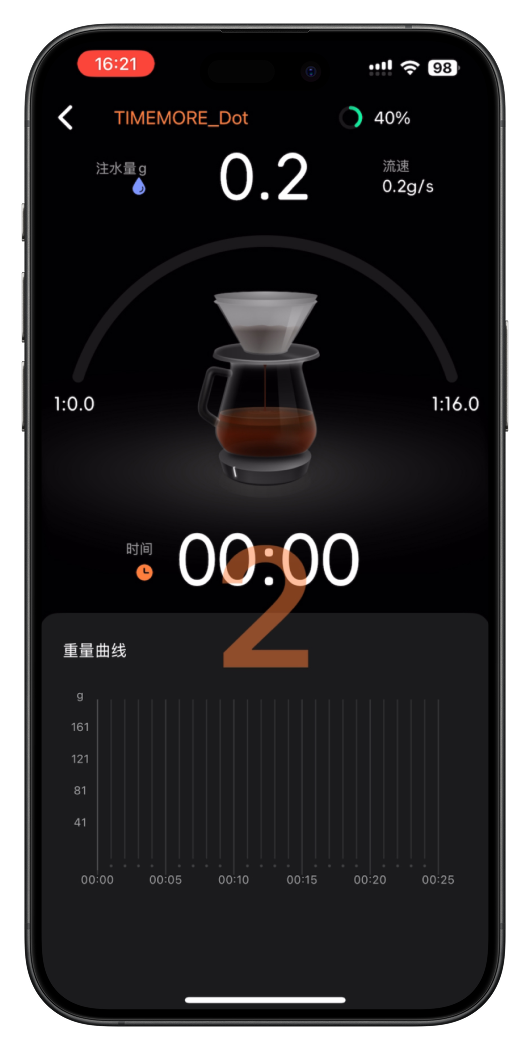
  • Timing starts immediately without a pre-brew reminder

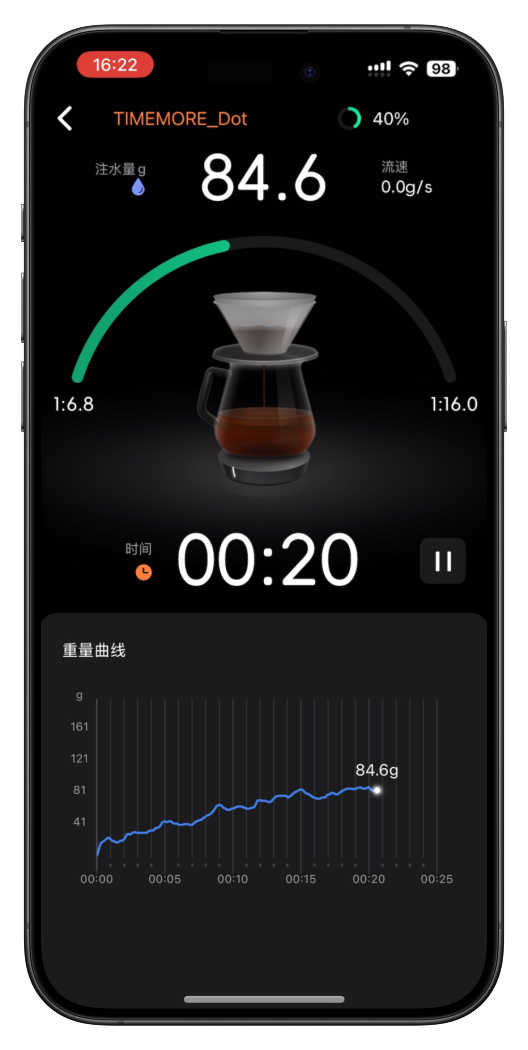
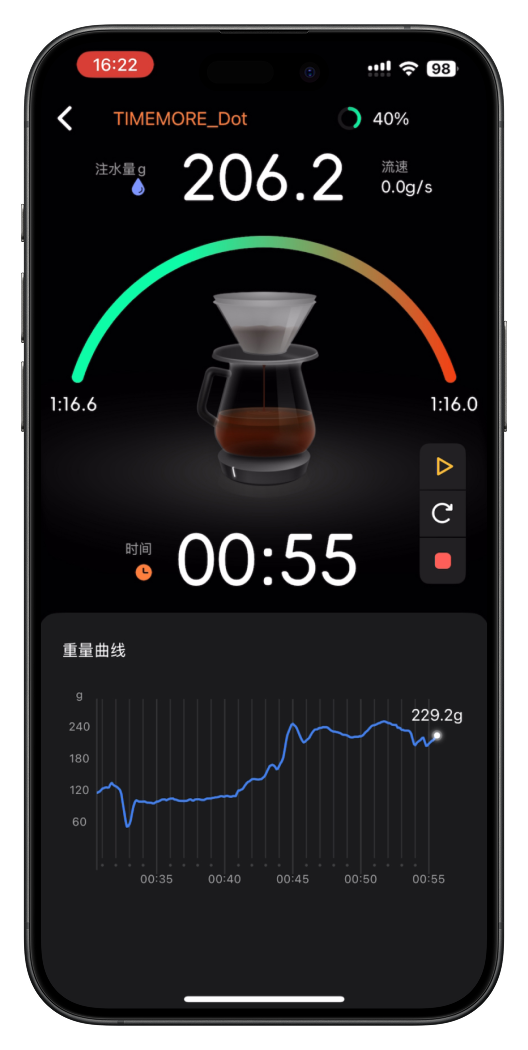
Original app interface for monitoring live brewing dataSMART BREW

UI issues

  • Core data is scattered

  • Pause and save controls are small and do not follow familiar conventions

  • Icon and text alignment is inconsistent

UX issues

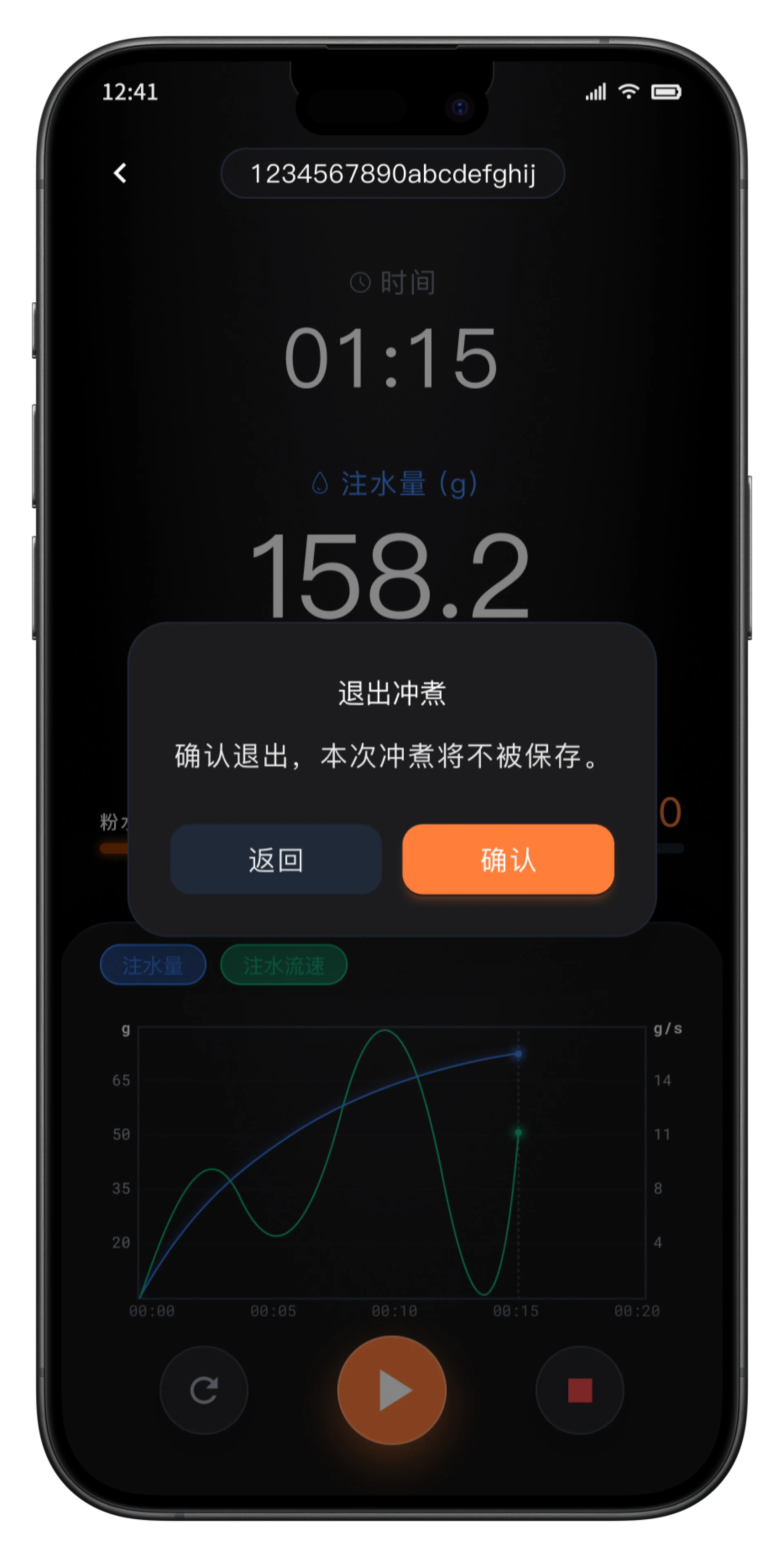
  • No data-loss warning appears when an operation fails

Original app interface for finishing and saving a brewSMART BREW

UI issues

  • Core data is scattered

  • Pause and save controls are small and do not follow familiar conventions

  • Icon and text alignment is inconsistent

UX issues

  • No data-loss warning appears when an operation fails

  • The progress bar cannot represent liquid weight beyond the target

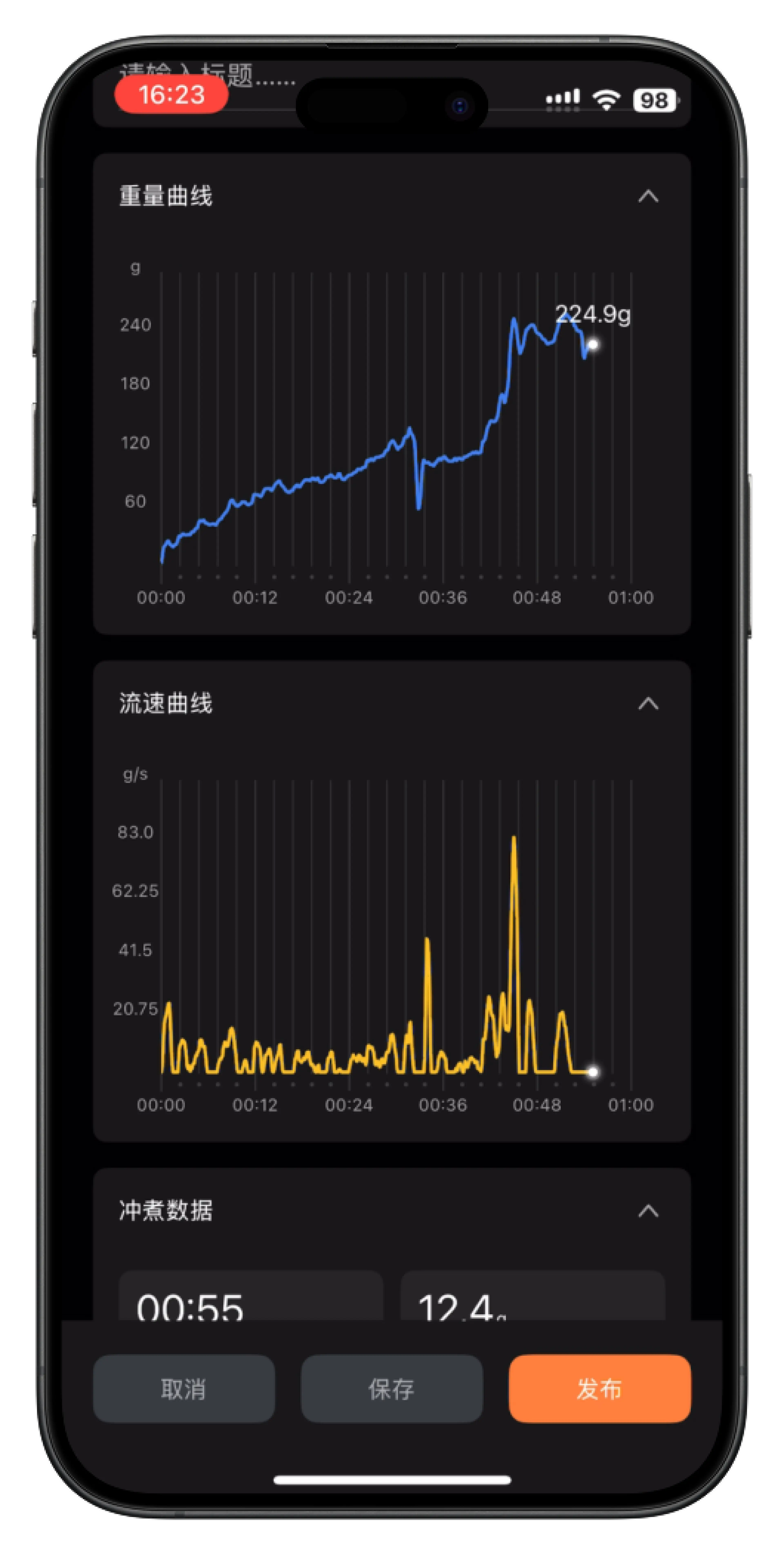
Original app interface for recording and sharing a recipe

UI issues

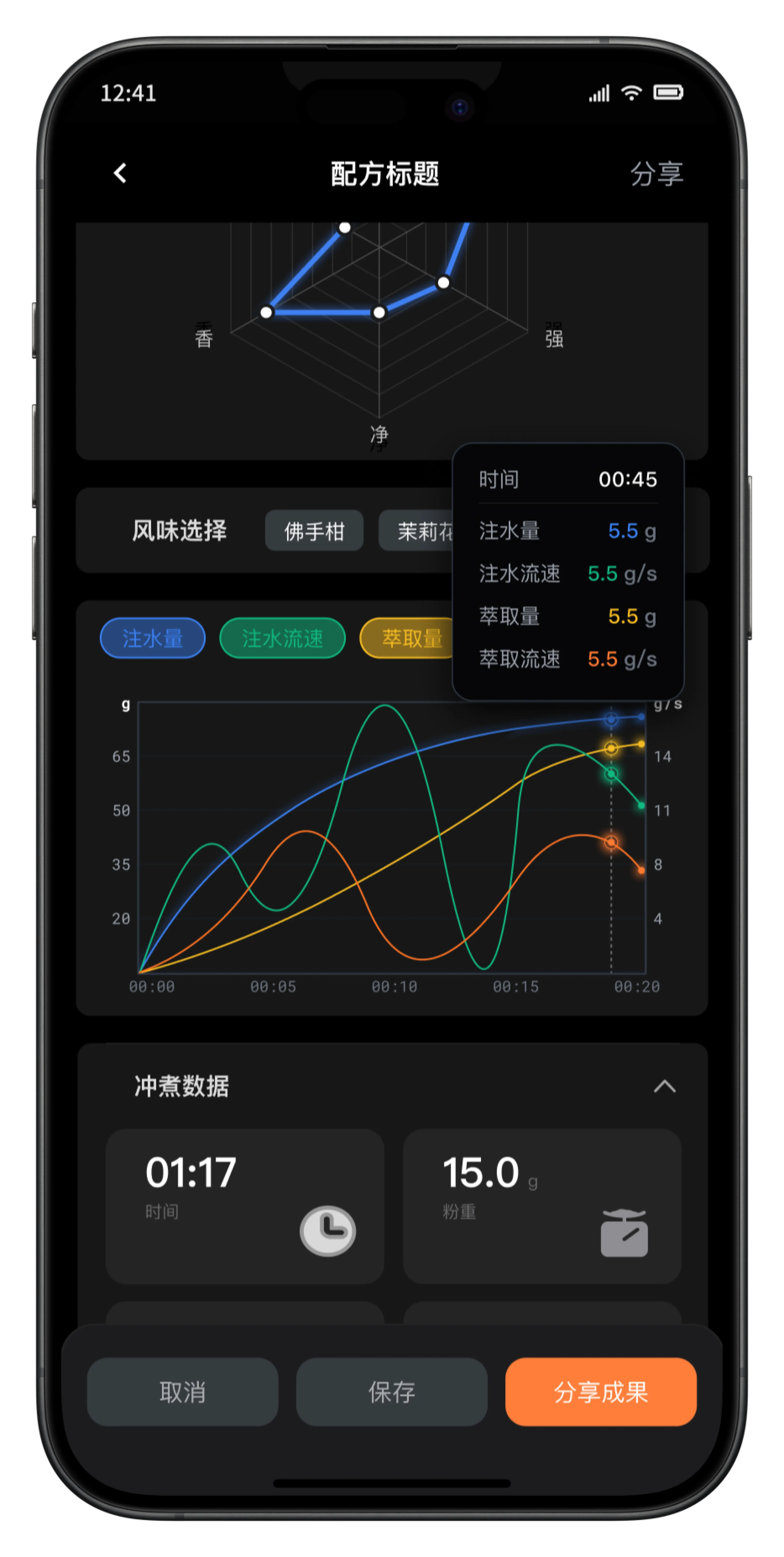
  • Data is presented inefficiently

  • The recipe page is excessively long

UX issues

  • There is no detail window for inspecting data at a specific moment

04 / BREWING INTERFACE REBUILD

Rebuilding the core brewing interface

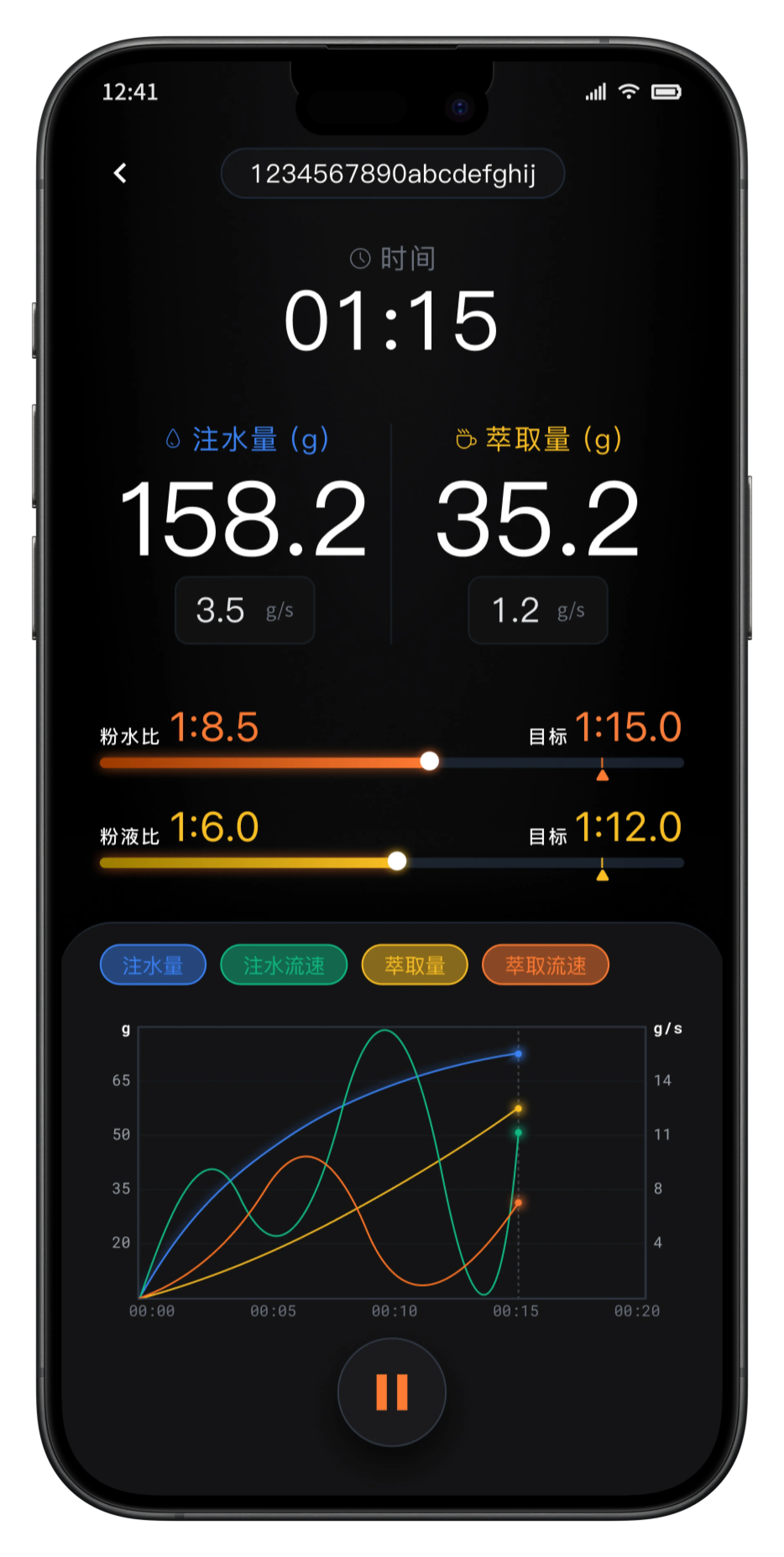
Reordering key data, target progress, charts, and controls makes every brew faster to read.

01

UX / UI · HIERARCHY & FEEDBACK

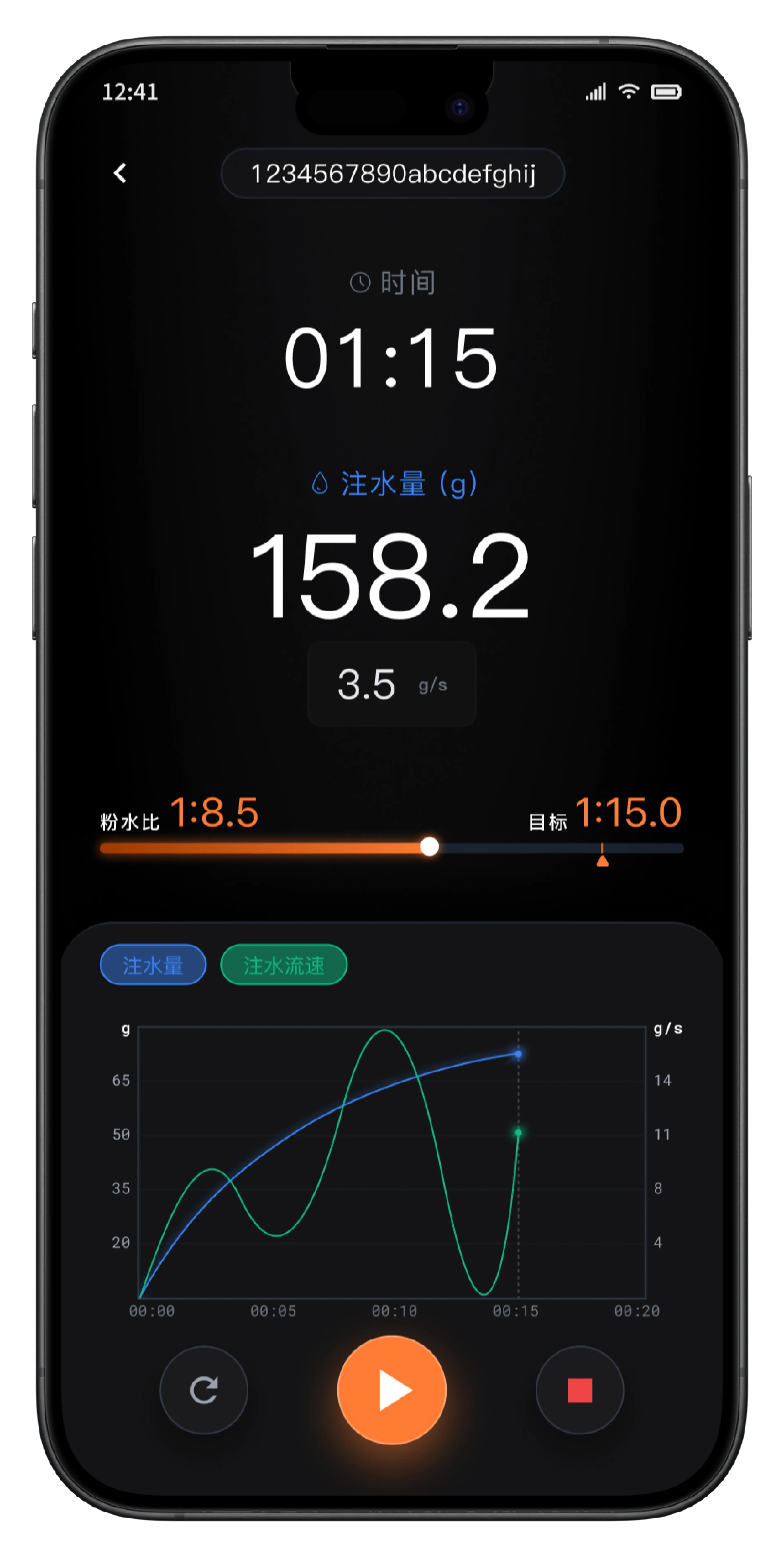
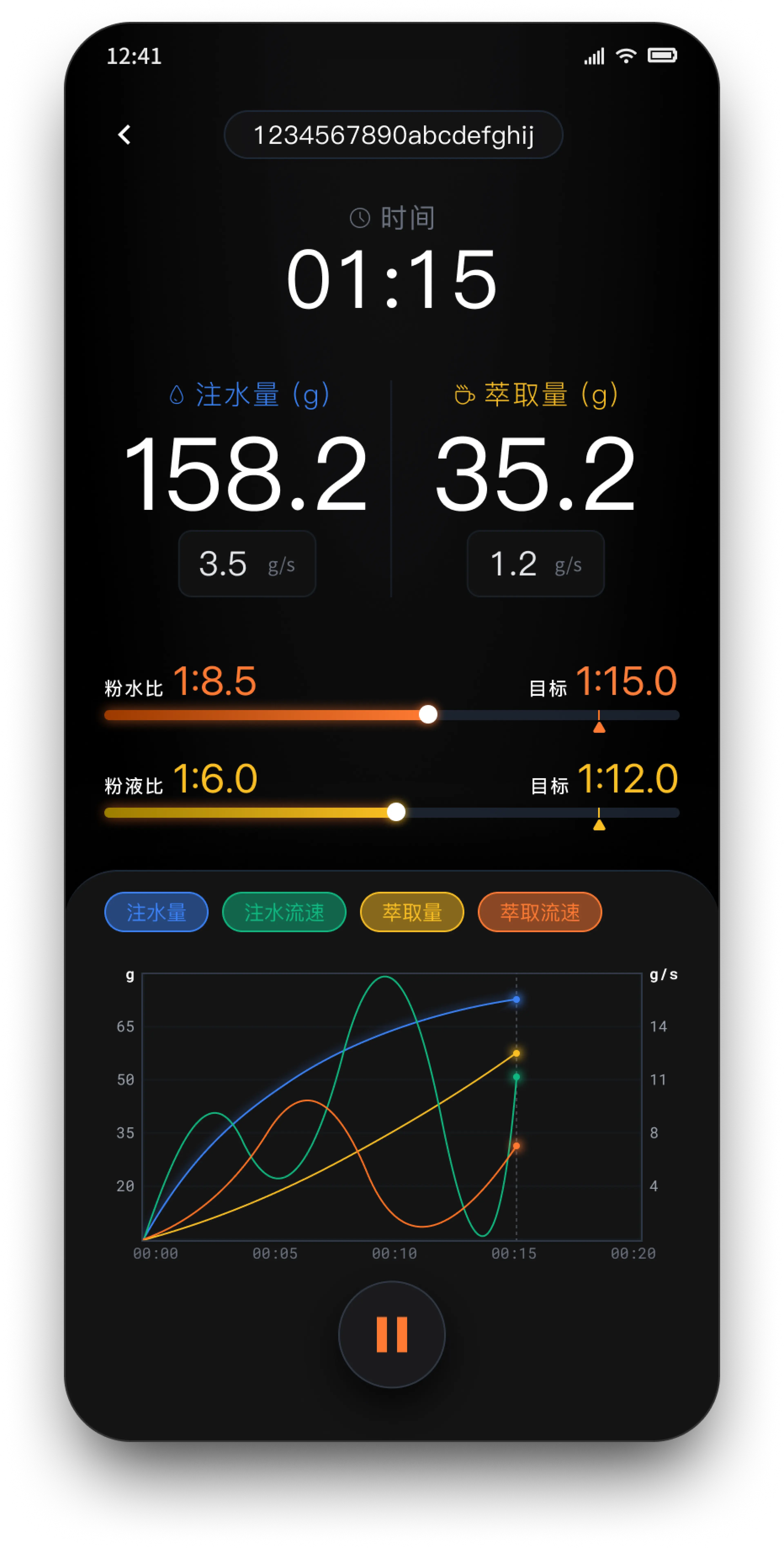
Rebuilt pour-over brewing interface
STEP 01

Rebuild the information hierarchy

  1. 01

    Create a stable reading path from the core value through target progress to the live chart.

  2. 02

    Prioritize pour or extraction volume while keeping time and live flow as supporting information.

Improve the operating experience

  1. 01

    Add an overflow range beyond the target so users can still judge deviations.

  2. 02

    Use familiar controls for play, pause, reset, and save.

01

UX / UI · HIERARCHY & FEEDBACK

Rebuilt pour-over brewing interface
STEP 01

Rebuild the information hierarchy

  1. 01

    Create a stable reading path from the core value through target progress to the live chart.

  2. 02

    Prioritize pour or extraction volume while keeping time and live flow as supporting information.

Improve the operating experience

  1. 01

    Add an overflow range beyond the target so users can still judge deviations.

  2. 02

    Use familiar controls for play, pause, reset, and save.

02

UI SYSTEM · MODE ADAPTATION

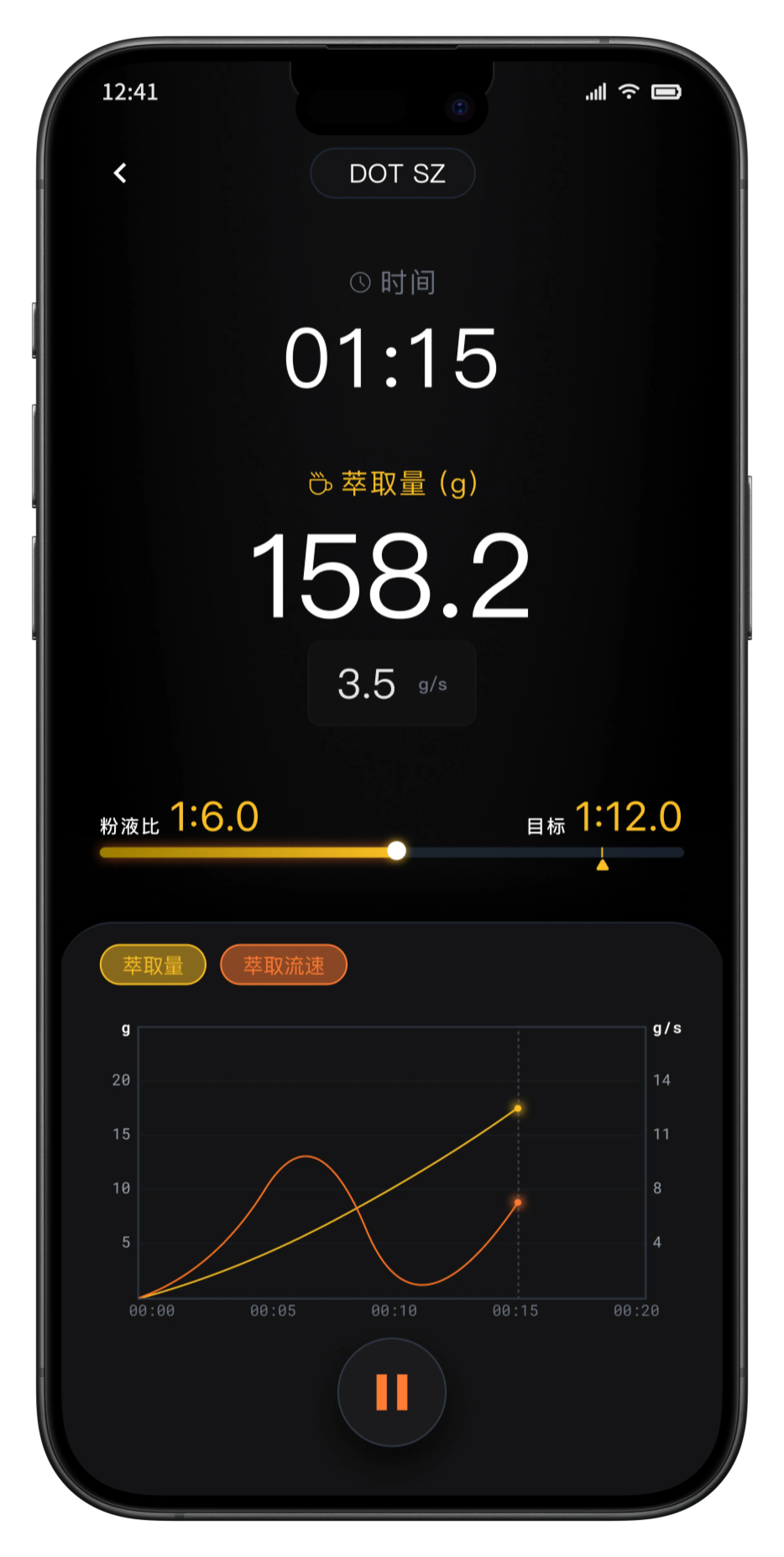
Adapted espresso brewing interface
STEP 02

Adapt to pour-over and espresso contexts

  1. 01

    Keep the information architecture and action logic consistent across both modes.

  2. 02

    Adapt parameters, units, progress feedback, and charts to each brewing method.

05 / JOURNEY EXPERIENCE COMPLETION

Completing the brewing journey

Critical states, feedback, and error prevention connect the full experience from starting a brew to saving it.

01 / PREPARE · START

From preparation to automatic timing

Experience gap

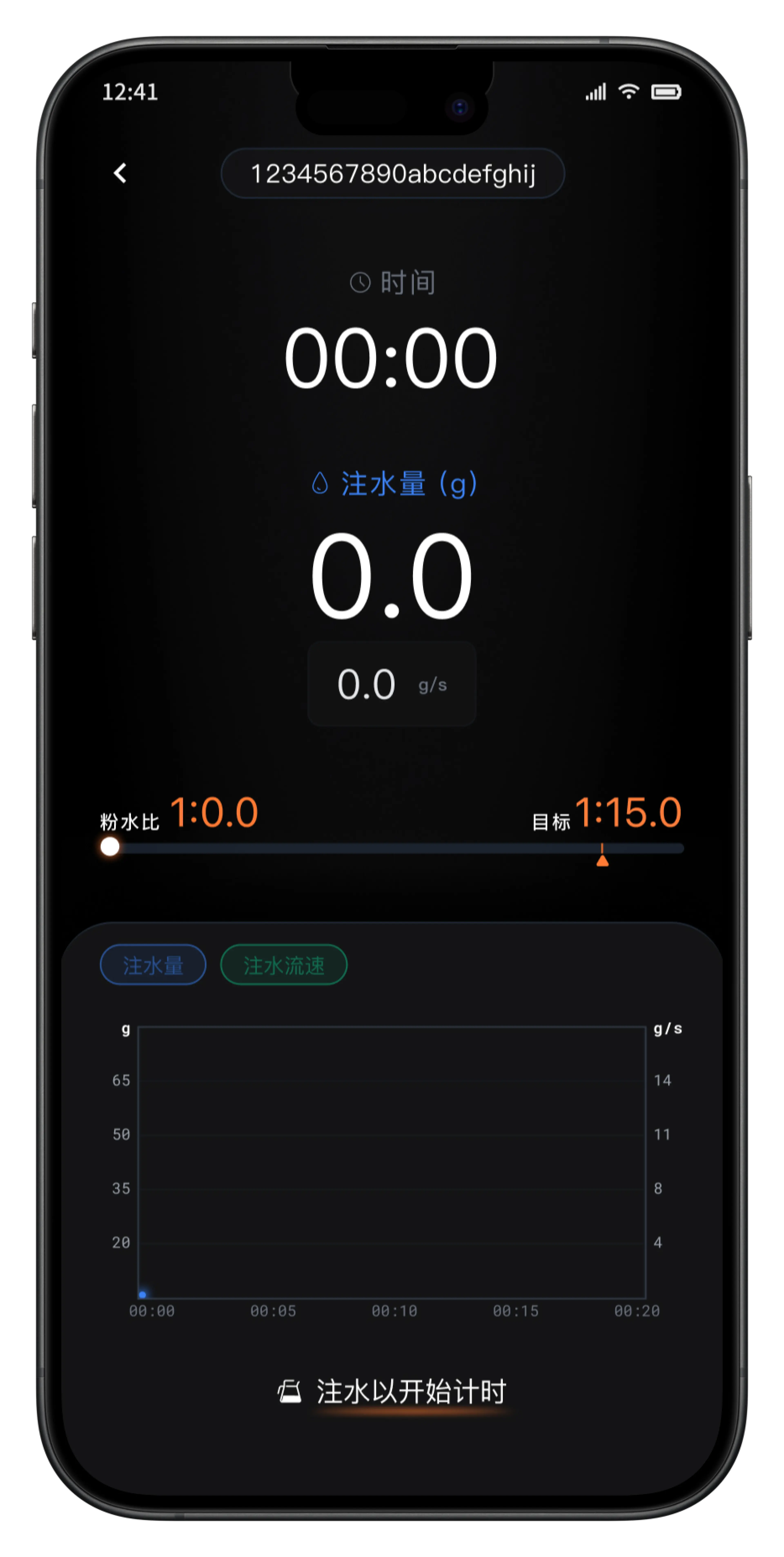
After the countdown, there was no clear signal for when to pour or when timing should begin.

Design response

Prompt the user to pour when the countdown ends, then start timing automatically when the weight changes.

CountdownPre-brew countdown interface
Ready to pourInterface prompting the user to pour

06 / DESIGN SYSTEM

Design system

Interface improvements became reusable rules for typography, iconography, components, and color—creating one visual language across brewing modes and device sizes.

01TYPOGRAPHY
Chinese and Latin typography system
02ICONOGRAPHY
Shared product iconography
03COMPONENTS
Tag and brewing control states
04COLOR TOKENS
Semantic product color system
  1. 01

    Cross-platform typography

    iOS uses PingFang SC for Chinese and SF Pro for Latin text and numerals; Android uses Source Han Sans and Roboto.

  2. 02

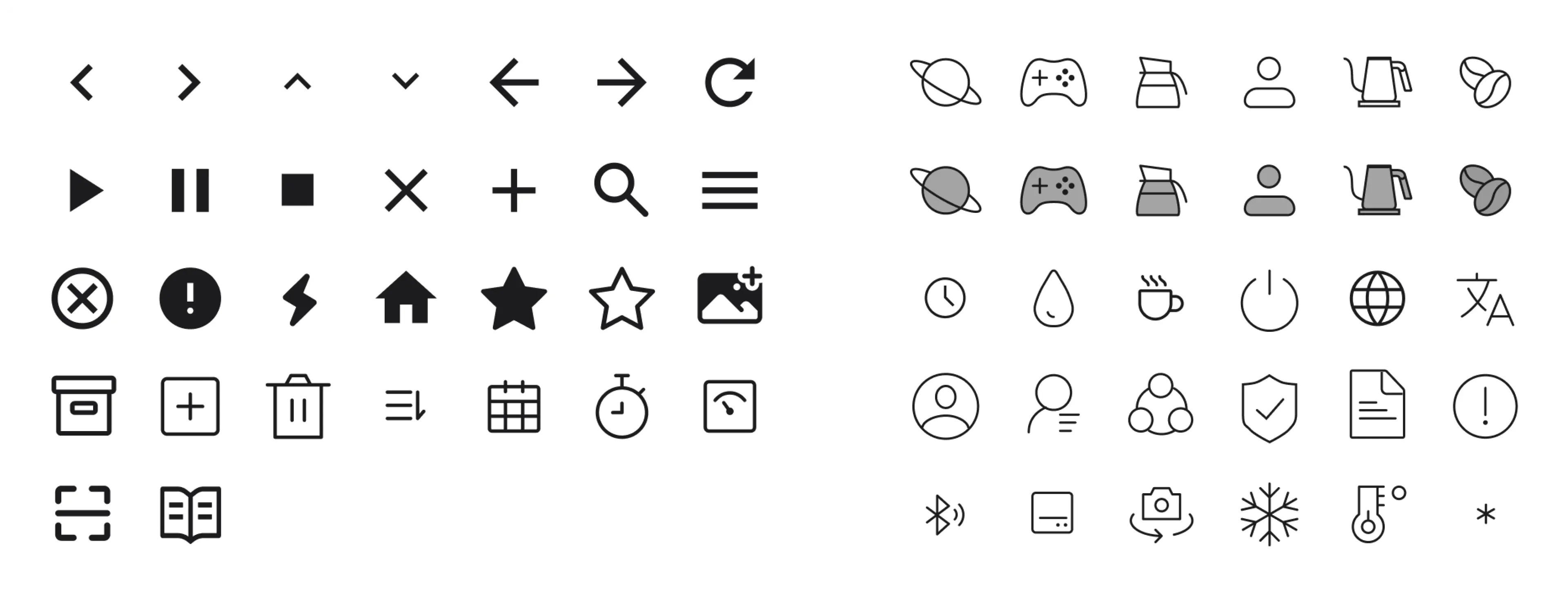
    A consistent linear icon style

    Iconography follows the brand's minimal visual language and primarily uses simple linear elements.

  3. 03

    A function-led color system

    Black forms the interface background, orange is the primary color, and supporting colors distinguish functional parameter types.

TYPE · ICON · COMPONENT · COLOR

07 / MULTI-DEVICE ADAPTATION

Multi-device adaptation

Three layout constraints preserve information hierarchy and operating efficiency across devices.

01

Reorganize, do not simply scale

The iPad layout redistributes modules and adapts type, spacing, navigation, charts, and controls.

  • Type and spacing
  • Modules and navigation
  • Charts and controls
02

Two tablet constraints

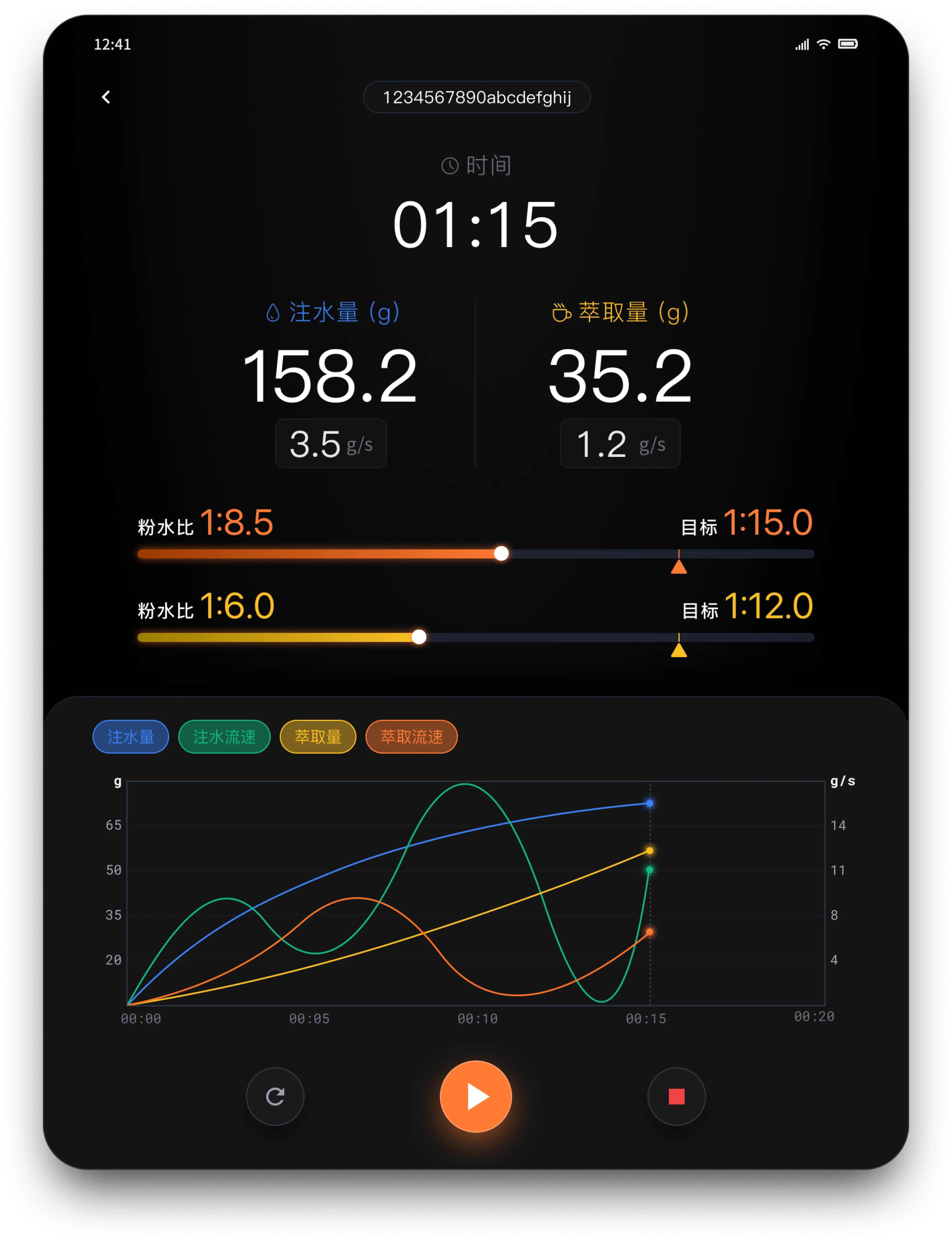
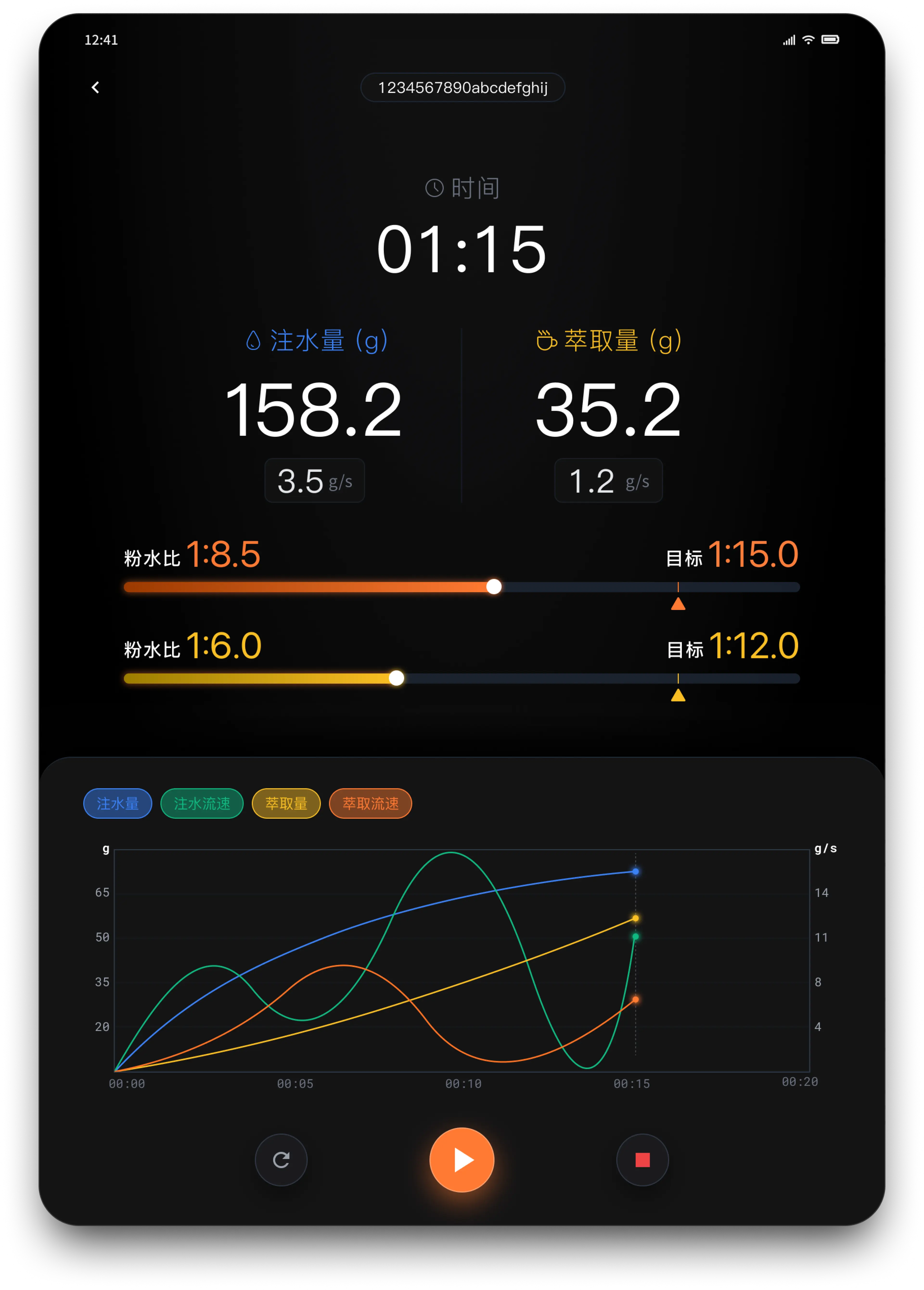
iPad mini uses compact 768 pt constraints; iPad Pro uses wide 810–1024 pt constraints while preserving the same information structure.

  • Compact tablet
  • Wide tablet
  • Consistent structure
iPhone320–428 ptCompact phone constraints
Brewing interface on iPhone
iPad mini768 ptCompact tablet constraints
Brewing interface on iPad mini
iPad Pro810–1024 ptWide tablet constraints
Brewing interface on a standard or large iPad

Viewport width / logical width (pt)

320 pt428 ptiPhone
768 ptiPad mini
810 pt1024 ptiPad Pro

08 / FUTURE FEATURE PLANNING

CONCEPT / INTERNAL REVIEW · NOT RELEASED

Future concept: Coffee bean vault

A new primary Coffee beans entry connects bean profiles, inventory, brewing use, and automatic stock updates.

01

A new primary entry

Add Coffee beans beside Discover, Games, Brew, and Profile as the home for vault capabilities.

02

A digital bean inventory

Keep bean details, resting status, and remaining weight together so current stock stays legible.

03

A direct link to brewing

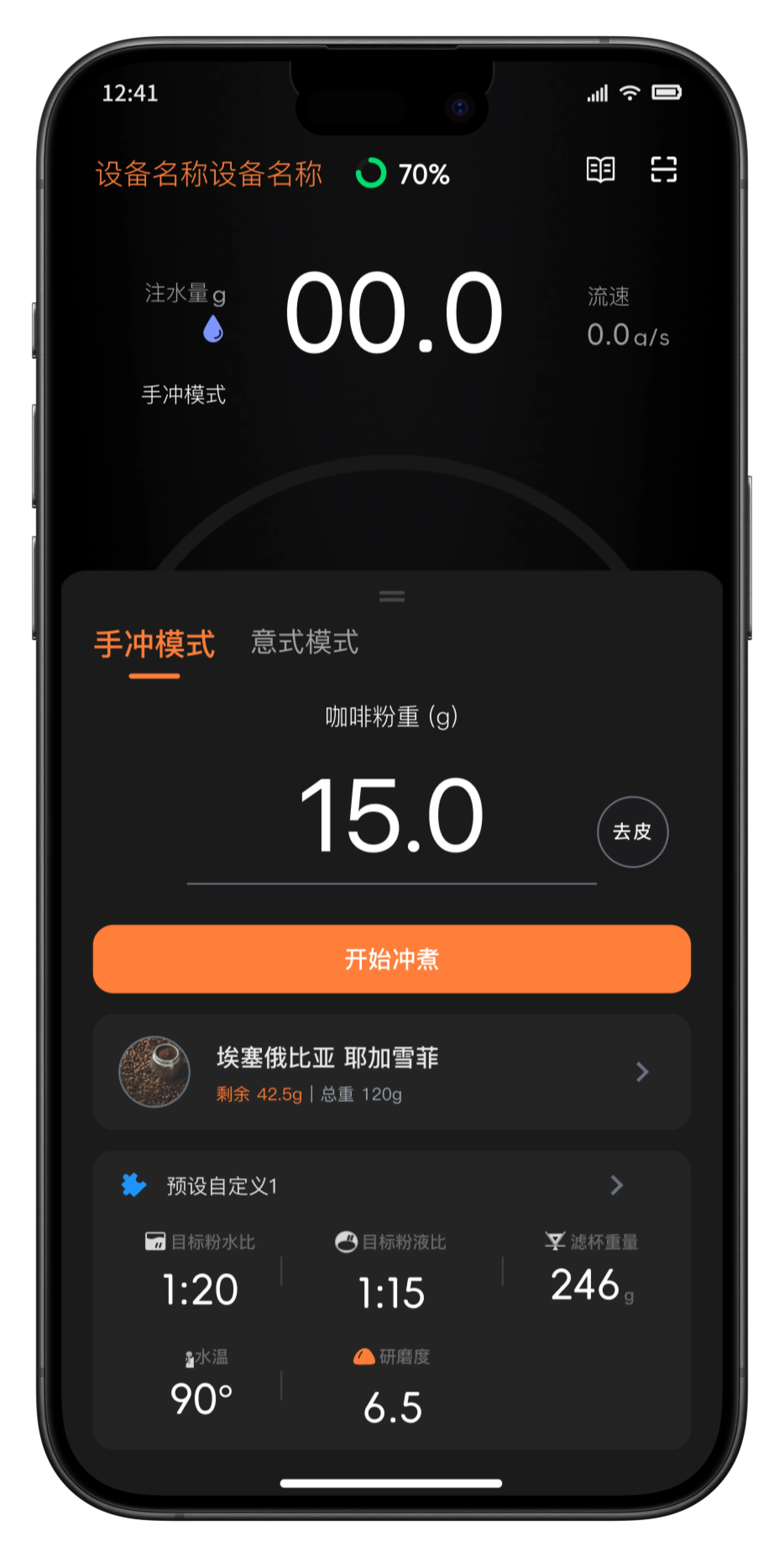
Select a vault bean inside the brew preset to reduce duplicate entry and connect each use.

04

Continuous stock sync

Deduct actual usage after brewing so bean data, brew parameters, and records stay aligned.

09 / CORE EXPERIENCE & INTERFACE

CONCEPT / INTERNAL REVIEW · NOT RELEASED

Core interface showcase

A continuous digital management journey spanning bean entry, inventory management, and brewing use.

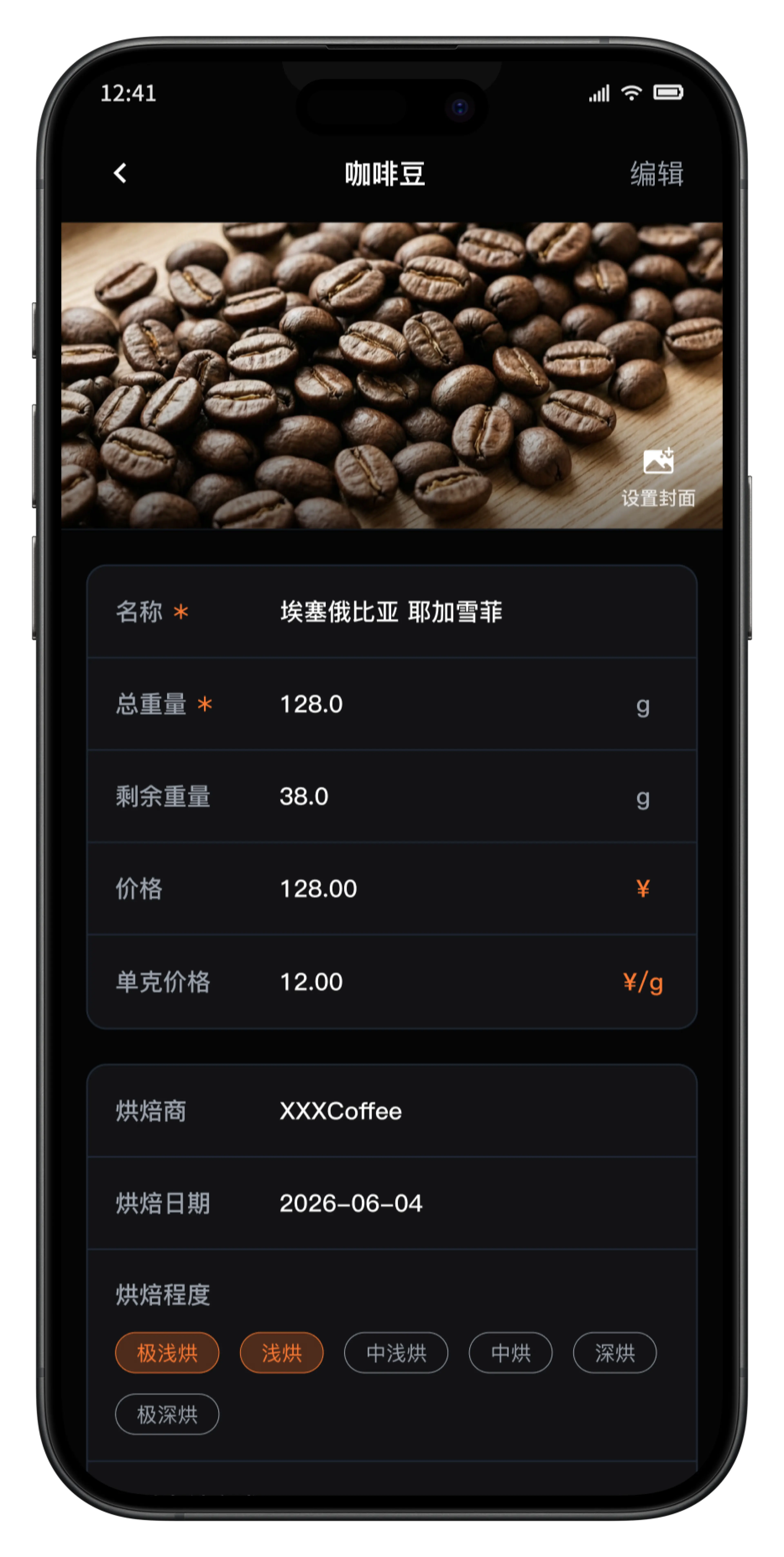
BEAN INFO 01 / 基础信息
填写咖啡豆基础库存和烘焙信息的手机界面
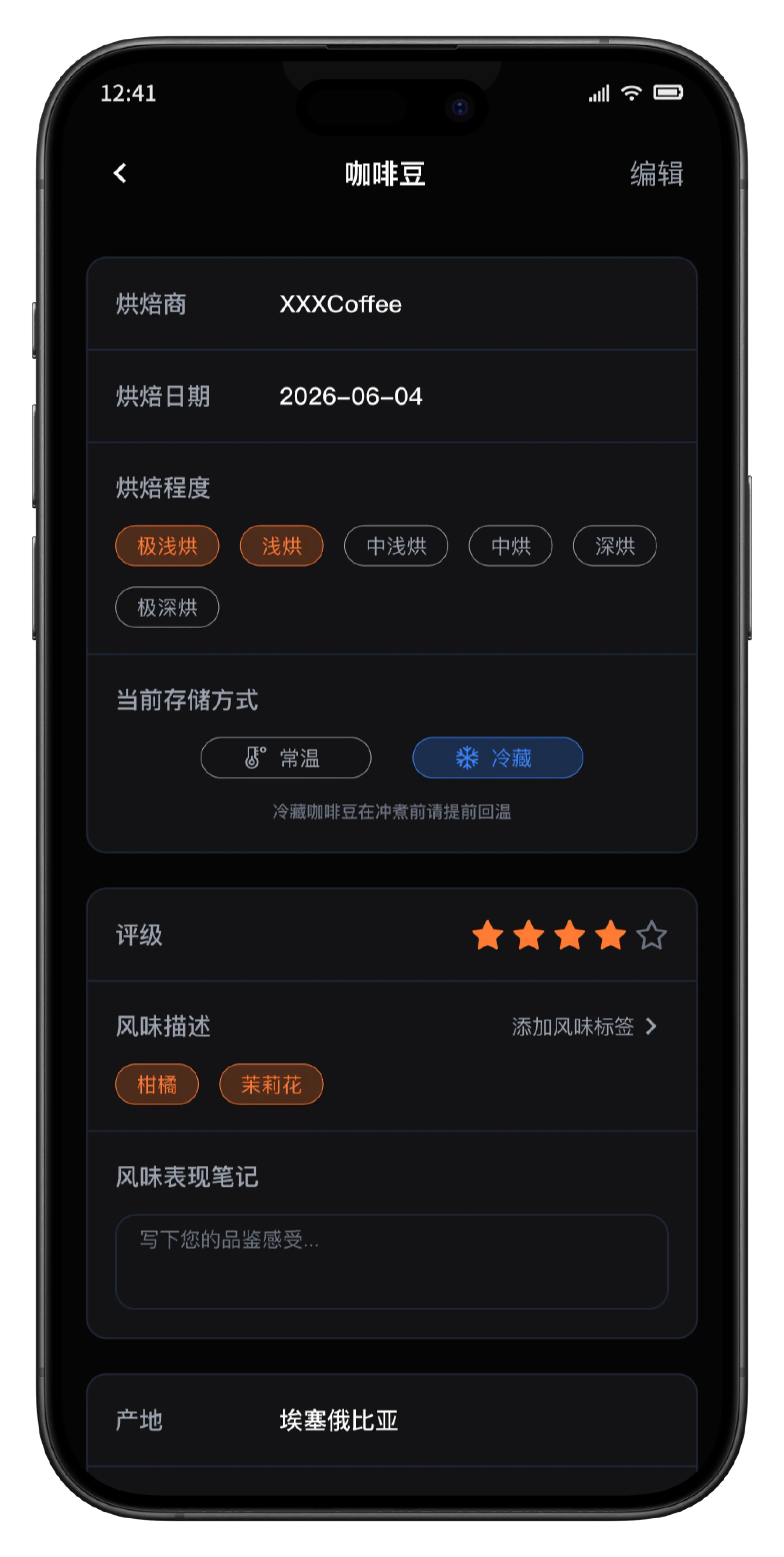
BEAN INFO 02 / 补充信息
填写咖啡豆存储、风味和产地信息的手机界面

01 / CREATE A BEAN PROFILE

Group details to reduce profile effort

Core inventory comes first, while roasting, flavor, and origin details remain available when needed.

Inventory
Name, weight, price
Roasting and storage
Date, level, storage
Flavor evaluation
Rating, tags, notes
Origin
Origin, variety, process

02 / MANAGE CURRENT AND HISTORICAL STOCK

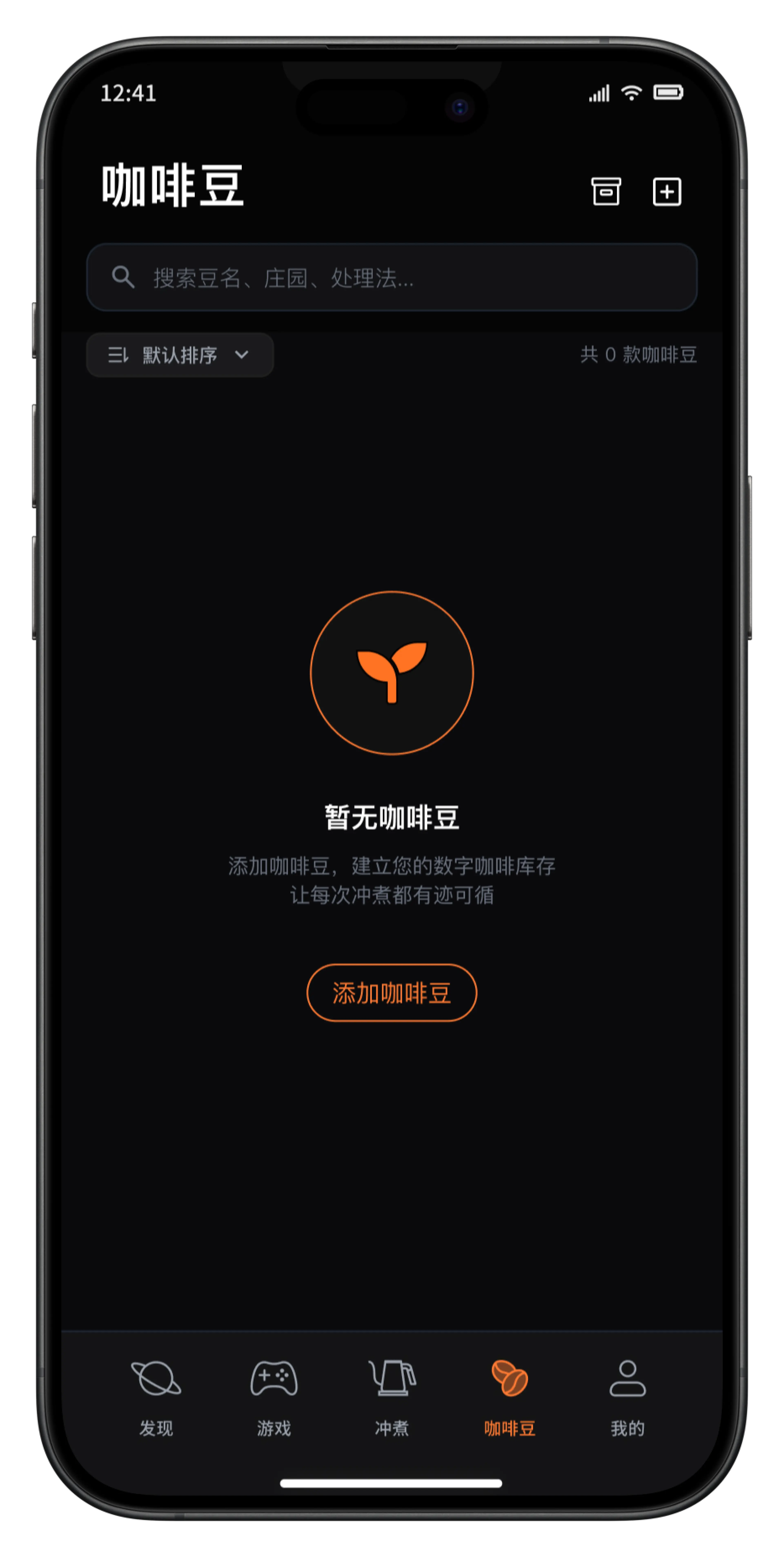
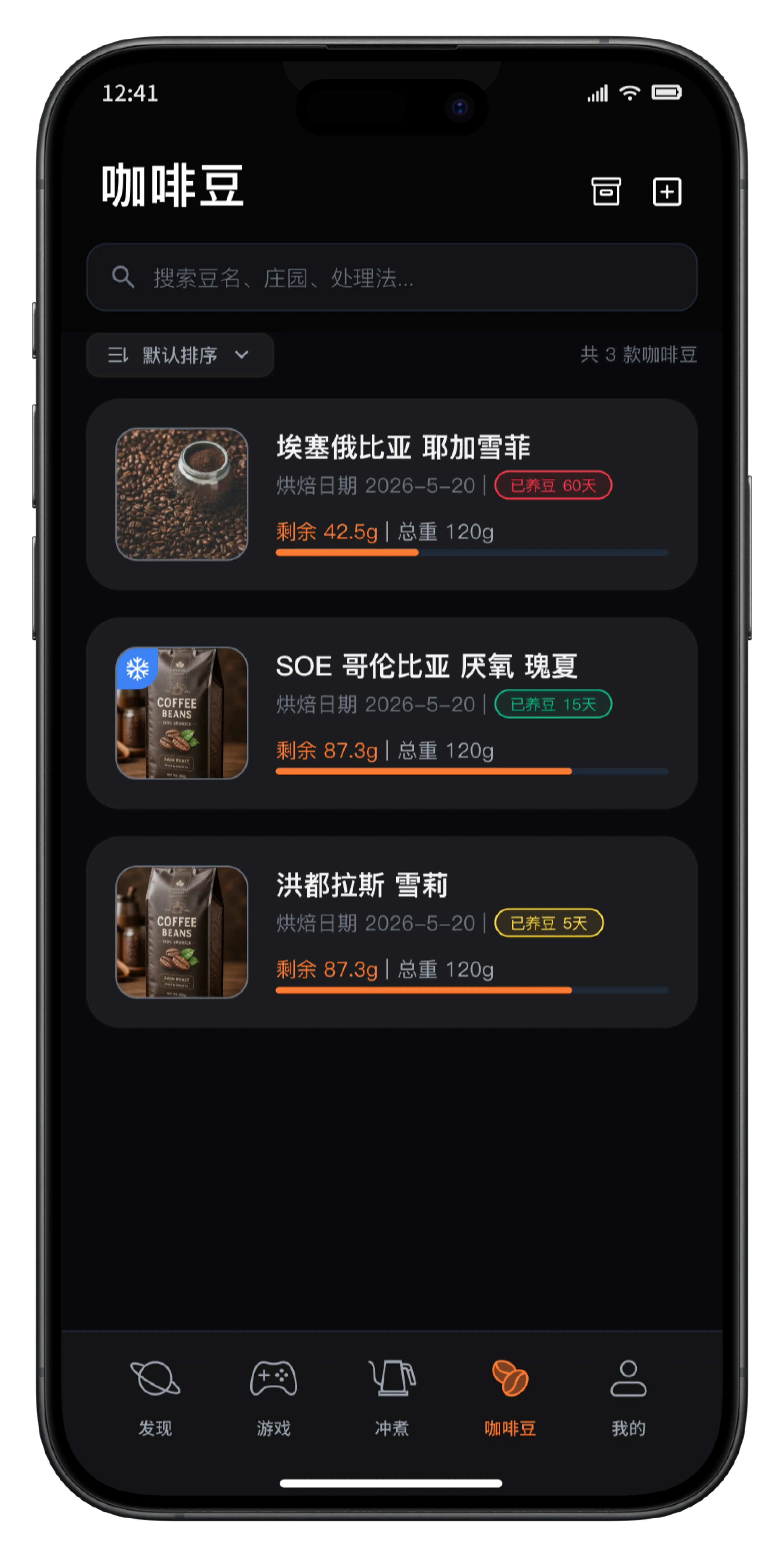
Read inventory status at a glance

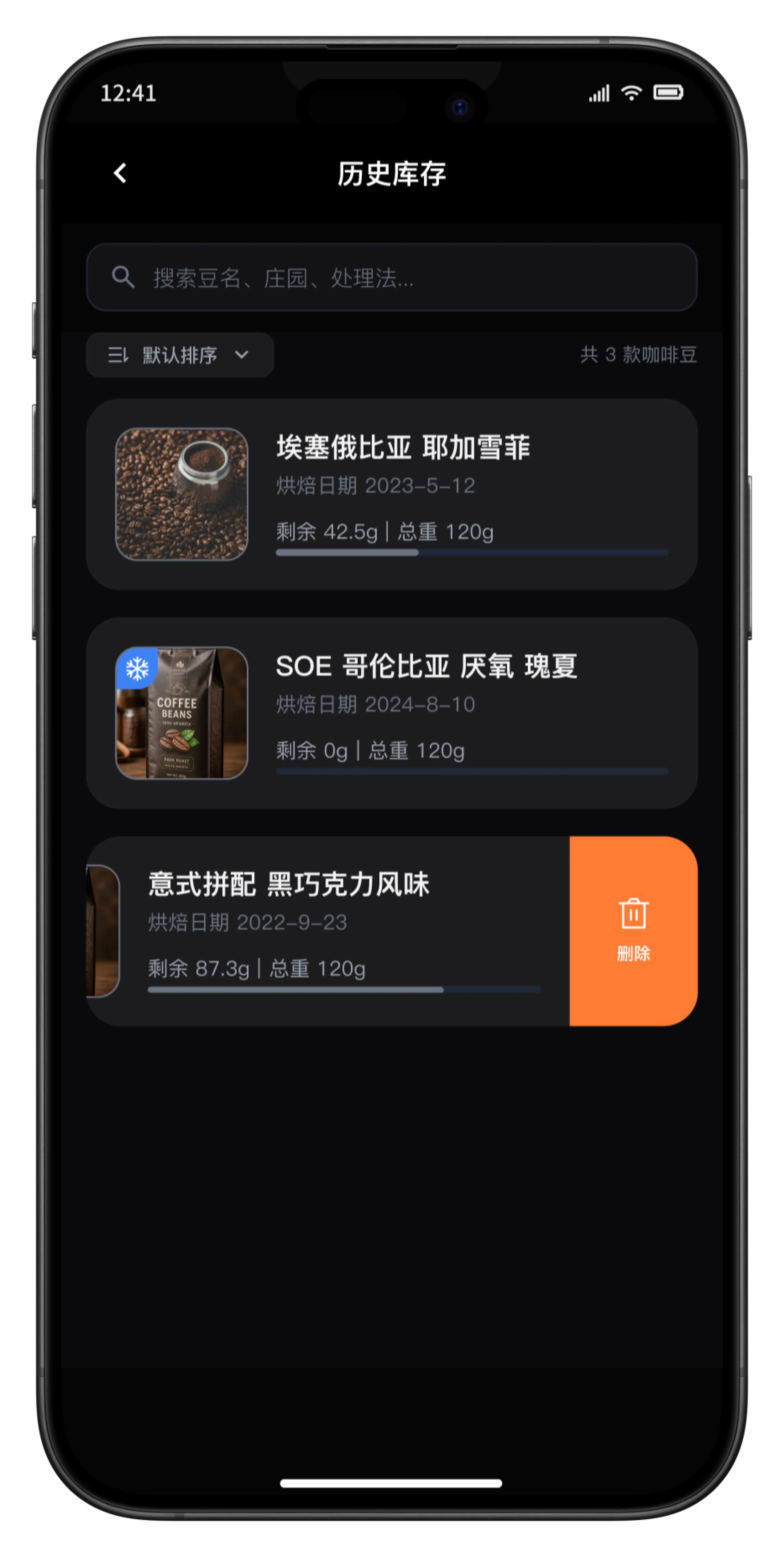
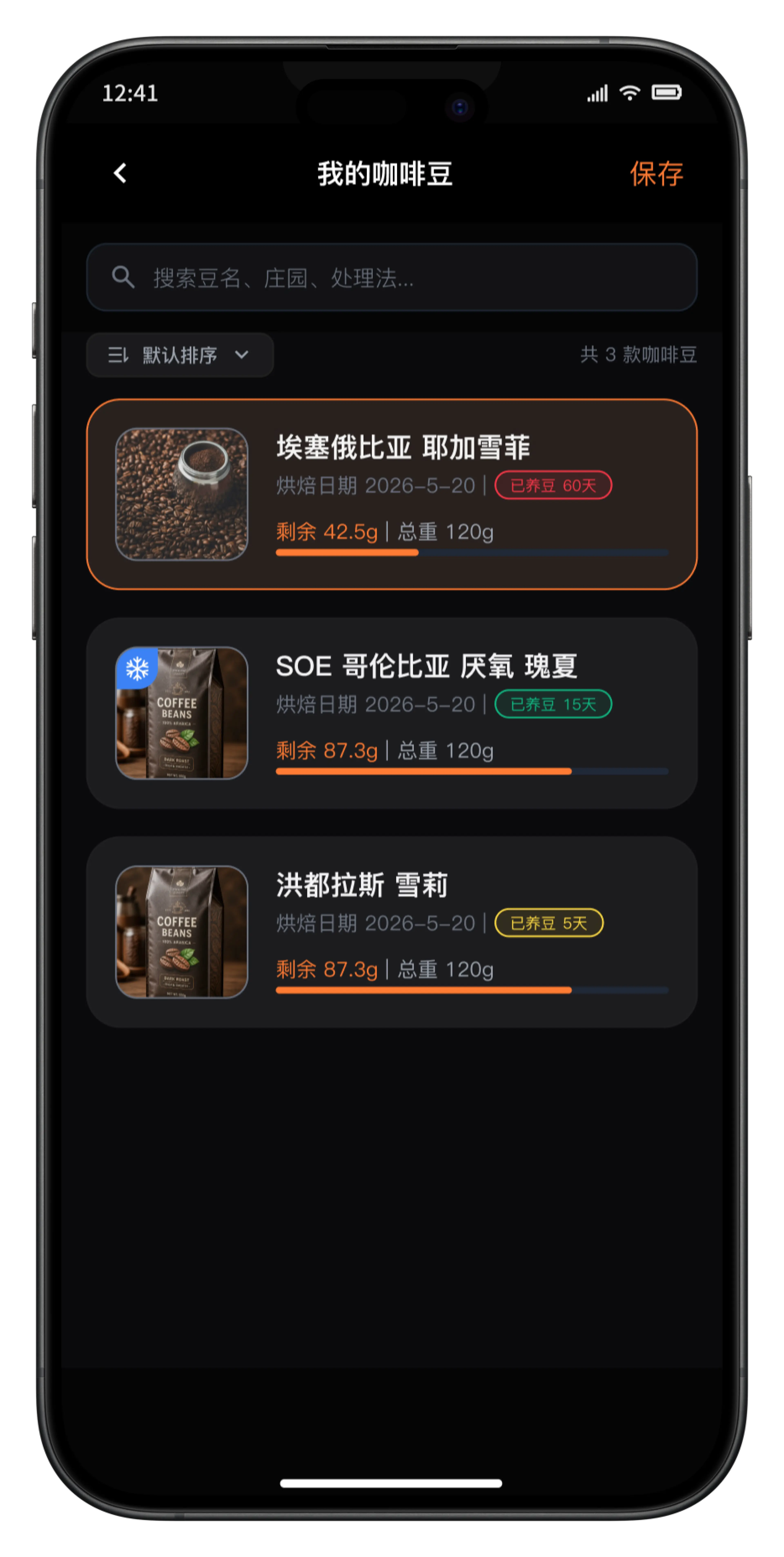
Bean cards surface resting status and remaining weight, with search, sorting, history, and delete actions.

  • Search and sort
  • Resting status
  • Remaining weight
  • Reorder
  • History and delete
EMPTY / 空状态
咖啡豆仓空状态手机界面
CURRENT / 当前豆仓
当前咖啡豆仓手机界面
HISTORY / 历史库存
历史库存手机界面
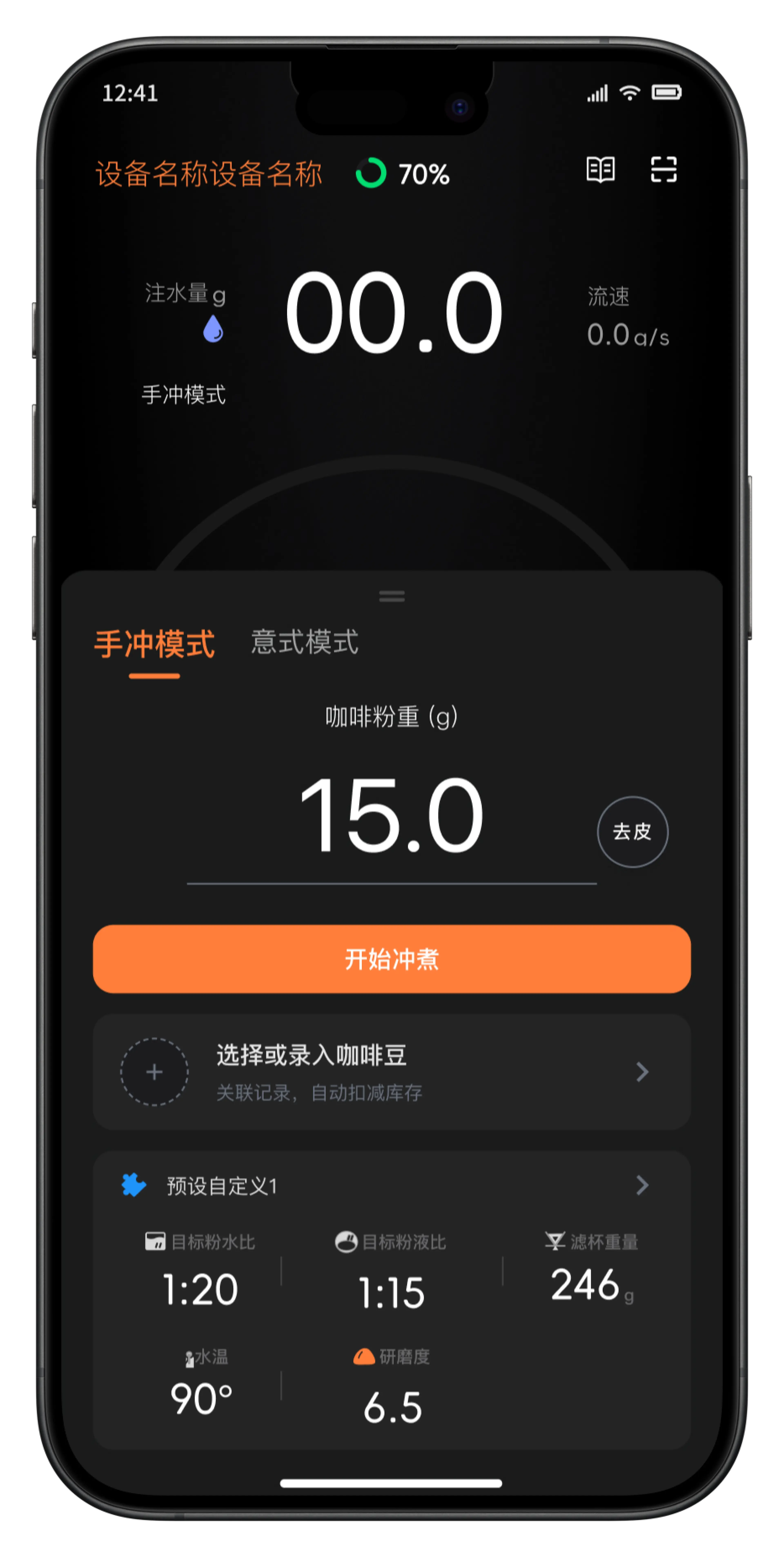
01 / 未选择咖啡豆
未选择咖啡豆的冲煮预设手机界面
02 / 选择咖啡豆
从咖啡豆仓选择咖啡豆的手机界面
03 / 同步库存
选择咖啡豆后自动同步库存的冲煮预设手机界面
  1. 01 Brew preset
  2. 02 Select a bean
  3. 03 Update inventory automatically

03 / CONNECT TO BREWING

Call bean-vault information directly before brewing

A bean can be selected inside the brew preset. Its name and remaining weight enter the brew context, and the system updates stock using the actual amount after brewing.

This concept is in internal review; inventory sync is expressed through brew-preset interface states without claiming a released outcome.